
Step-by-Step Guide to Creating a Telegram Store
Creating an online store in the form of a web bot in four simple steps.
The bot itself is created without code in about 15 minutes.
The bot itself is created without code in about 15 minutes.
Step-by-step video guide for creating a store in Telegram, choose your device:
Step-by-step video guide for creating a store in Telegram:
If you have any questions while creating the bot, you can contact support: @uShopHelpBot
For those who do not want to watch the video or do not have the opportunity, we will describe the steps in text format.
1. Creating an Online Store
The entire instruction may seem lengthy, but in fact, creating a bot is just the regular process of registering an account, a website, and a bot, followed by setting up the bot (avatar, adding products, etc.). But the most important thing is that the bot is created
completely without code
, meaning no programming skills are required.
Let's get started on creating our bot:
1.1. Launch our bot constructor: @uShopWebBot
1.2. In the first message from the bot, click the button " 🛒 Create a Store "
1.3. Next, a window will open with links to this instruction and a link to technical support; we will click the button " 🤖 Create a Web Bot "
1.4. In the next message, click the button "🔑 Register ", after clicking, the registration phase will begin, and you will need to send your email, create a password, and then confirm your email. In the last stage of registration, you will need to come up with a technical address for your future website.
Let's get started on creating our bot:
1.1. Launch our bot constructor: @uShopWebBot
1.2. In the first message from the bot, click the button " 🛒 Create a Store "
1.3. Next, a window will open with links to this instruction and a link to technical support; we will click the button " 🤖 Create a Web Bot "
1.4. In the next message, click the button "🔑 Register ", after clicking, the registration phase will begin, and you will need to send your email, create a password, and then confirm your email. In the last stage of registration, you will need to come up with a technical address for your future website.
2. Instructions for Connecting the Bot
As soon as we create the website, we need to create the bot itself
2.1. After logging into your account, you need to enter the command /newbot
2.2 Next, a list of all your sites will appear. If you have created only one site, it will be the only one shown, so select it.
2.3. After selecting the site, we need to connect the Telegram bot.
The bot itself is created in the official Telegram bot Botfather :
2.4. Go to the bot: @Botfather
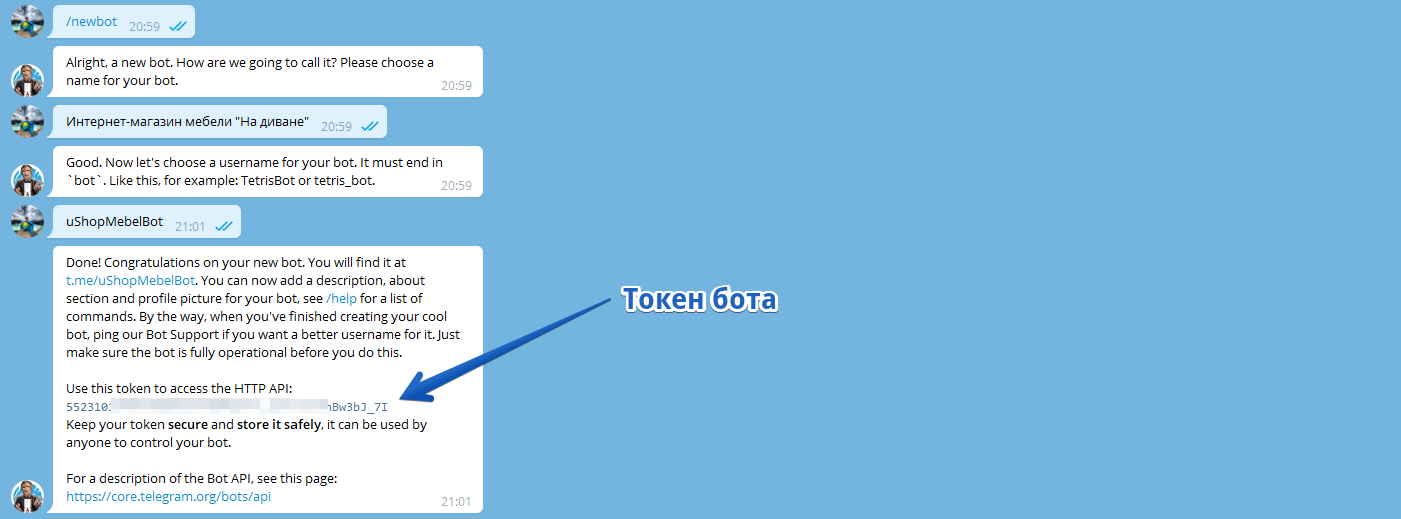
2.5. Start it and enter the command /newbot
2.6. Come up with a name for your bot (For example: " On the Couch - Furniture Store ")
2.7. Come up with a @username for the bot (It must end with bot, example: @uShopTelegramBot )
2.8. After that, you will receive the token for your bot, which you need to send to the constructor @uShopWebBot :
2.1. After logging into your account, you need to enter the command /newbot
2.2 Next, a list of all your sites will appear. If you have created only one site, it will be the only one shown, so select it.
2.3. After selecting the site, we need to connect the Telegram bot.
The bot itself is created in the official Telegram bot Botfather :
2.4. Go to the bot: @Botfather
2.5. Start it and enter the command /newbot
2.6. Come up with a name for your bot (For example: " On the Couch - Furniture Store ")
2.7. Come up with a @username for the bot (It must end with bot, example: @uShopTelegramBot )
2.8. After that, you will receive the token for your bot, which you need to send to the constructor @uShopWebBot :
3. Bot Design
Hooray 🥳! We have created a bot. But this is only half the journey. Now we need to design it and fill it with products.
3.1. Everything related to the bot's design (avatar, bot description), that is, all the information displayed before the bot starts, can be fully configured in @Botfather. You will need to enter the command /mybots, then select your bot and go to the "Edit Bot" section. There, you can set the bot's: Name, About, Pic, Description (which is visible before starting), and an image for this description.
3.2. The information displayed within the bot (welcome text, names and text of buttons, bot color and design, etc.) is configured in the /admin section (this command is written in your bot store that you created) and in this section, you need to select the "Change Design" option and go to the "Buttons and Links" tab.
3.1. Everything related to the bot's design (avatar, bot description), that is, all the information displayed before the bot starts, can be fully configured in @Botfather. You will need to enter the command /mybots, then select your bot and go to the "Edit Bot" section. There, you can set the bot's: Name, About, Pic, Description (which is visible before starting), and an image for this description.
3.2. The information displayed within the bot (welcome text, names and text of buttons, bot color and design, etc.) is configured in the /admin section (this command is written in your bot store that you created) and in this section, you need to select the "Change Design" option and go to the "Buttons and Links" tab.

After which you will enter your bot's control panel, and there you need to specify your texts - contacts, information about the store, welcome text, and more:

In the "Change Design" section, you can also change the design/template of your bot store,
video tutorial
4. Adding a Product
Now we need to decide how we will add the product, specifically whether it will be manual entry or importing the product from some source (from your old site, Moy Sklad, 1C, Yandex.Market, or simply from an Excel price list)
4.1. Adding a Product Manually:
4.1.1. Product Categories. Go to your created bot store and enter the command /admin, then select the "Manage Categories" section where you can delete the default categories and create your own.
4.1. Adding a Product Manually:
4.1.1. Product Categories. Go to your created bot store and enter the command /admin, then select the "Manage Categories" section where you can delete the default categories and create your own.

4.1.2 Variations/Options of the Product.
(this item is optional)
If you need the option to select characteristics when placing an order for the product, such as choosing color, size, flavor, etc., you can create product options. Example options in the bot store: Size and Color Selection for Clothing , Set and Quantity Selection for Delivery
If you need the option to select characteristics when placing an order for the product, such as choosing color, size, flavor, etc., you can create product options. Example options in the bot store: Size and Color Selection for Clothing , Set and Quantity Selection for Delivery

4.1.3 Placing the Product.
Now we come to the main part. Adding a product happens directly in your bot store; you also need to enter the command /admin and select the "📥 Add Product" option.

If you are selling services or digital products (files, keys, links, codes, etc.), you need to change the product type.
Detailed instructions

4.2. Bulk Import of Products:
If manual entry does not suit you, we have the option to import products from Excel (XLS/XLSX/CSV/Google Docs) and 1C, YML (Yandex.Market), Moy Sklad, etc.
When importing products, you do not need to create options and categories manually; you only need to specify a single column that contains the name of the category, and all your products will be sorted into it.
Example Import for Clothing , Example Import for Delivery
If manual entry does not suit you, we have the option to import products from Excel (XLS/XLSX/CSV/Google Docs) and 1C, YML (Yandex.Market), Moy Sklad, etc.
When importing products, you do not need to create options and categories manually; you only need to specify a single column that contains the name of the category, and all your products will be sorted into it.
Example Import for Clothing , Example Import for Delivery

5. Currency Settings and Stock Management
5.1. Currency Setup. You can accept payments for your products in any currency: Rubles, Hryvnias, Tenge, Soums, Dollars, Euros, Pounds, and in 77 other currencies. You can also accept payments in cryptocurrencies (USDT, BTC, ETH, TON, etc.)
You can edit the currency in the section /admin - the "Control Panel" item, and then select the "Payment and Delivery" section:
You can edit the currency in the section /admin - the "Control Panel" item, and then select the "Payment and Delivery" section:

5.2. Stock Management. (This item is not mandatory)
All physical products in the online store have a field that indicates availability or delivery date. With the stock management function, you can:
All physical products in the online store have a field that indicates availability or delivery date. With the stock management function, you can:
- Automatically deduct purchased items
- Prevent adding items to the cart with zero stock
- Automatically hide items that are out of stock
- Import stock from XLS and 1C price lists
6. Connecting Online Payments
In the bot, you can connect payment services that allow you to accept payments in rubles, hryvnias, tenge, som, dollars, euros, pounds, and 77 other currencies without leaving the chat with the bot.
6.1. Connecting payments from uCoz:
We have internal direct integrations with payment systems:
YooKassa , YooMoney for Individuals , Sberbank , LiqPay , Wallet One , ROBOKASSA , Fondy , PayPal , WebMoney , Freekassa , UnitPay , CloudPayments , Stripe , T-Bank , Sberbank Credit , enot.io , Wata, Crypto .
To learn how to connect payments from uCoz, follow the link: How to connect payments
6.1. Connecting payments from uCoz:
We have internal direct integrations with payment systems:
YooKassa , YooMoney for Individuals , Sberbank , LiqPay , Wallet One , ROBOKASSA , Fondy , PayPal , WebMoney , Freekassa , UnitPay , CloudPayments , Stripe , T-Bank , Sberbank Credit , enot.io , Wata, Crypto .
To learn how to connect payments from uCoz, follow the link: How to connect payments
6.2. Connecting Telegram Payments:
For Telegram, the following payment systems are integrated by default: YuKassa, Tranzzo (Interkassa), Stripe, UnitPay, PaycomUZ / Payme, CLICK Uzbekistan, Rave by Flutterwave, LiqPay, Smart Glocal, Unlimint, Paykassma, PSB, Bank 131, LeoGaming, Cascad, Paymega, Portmone, Global Pay UZ, iPay88, ECOMMPAY, and PayMaster.
To connect these payments from Telegram, you need to go to the "🛠 Bot Settings" (/mybot) in the bot @uShopWebBot
And then select the "💰 Payment" section, after which you will need to send the payment name and the payment system token.
You can obtain the payment system token from @Botfather; for this, you will need to go to your bot's settings and select the "Payments" section.
For Telegram, the following payment systems are integrated by default: YuKassa, Tranzzo (Interkassa), Stripe, UnitPay, PaycomUZ / Payme, CLICK Uzbekistan, Rave by Flutterwave, LiqPay, Smart Glocal, Unlimint, Paykassma, PSB, Bank 131, LeoGaming, Cascad, Paymega, Portmone, Global Pay UZ, iPay88, ECOMMPAY, and PayMaster.
To connect these payments from Telegram, you need to go to the "🛠 Bot Settings" (/mybot) in the bot @uShopWebBot
And then select the "💰 Payment" section, after which you will need to send the payment name and the payment system token.
You can obtain the payment system token from @Botfather; for this, you will need to go to your bot's settings and select the "Payments" section.
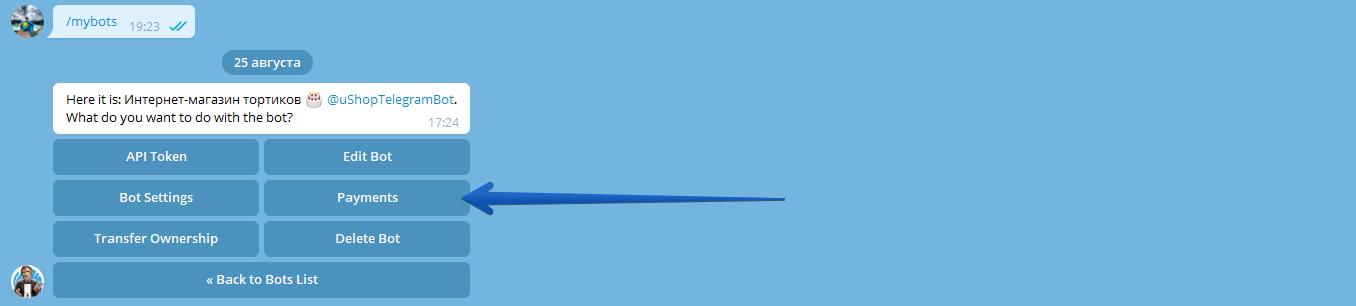
After that, you need to select the payment system you want to connect for receiving payments and activate it.

7. Интеграция служб доставки
Если продаете товар/продукт с доставкой, то вы можете интегрировать службы доставки, чтобы они предоставили список своих ПВЗ и делали расчет доставки исходя из расстояния, веса и габбаритов вашей посылки.
Инструкции:
Инструкции:
- Интегратор служб доставки ApiShip, с его помощью можно подключить такие сервисы как: Яндекс.Доставка, Сберлогистик, Достависта, Деловые Линии, Boxberry и прочие
- Матрица формирования цен на доставку без служб доставки
FAQ - Frequently Asked Questions
We are the first web bot builder focused on E-commerce; you can create a Telegram store in just 10 minutes. We don't have unnecessary features, and the interface is intuitive for everyone. Just create a bot in Botfather, connect it to our builder, upload your products, and start selling on Telegram.
Aside from selling products and accepting online payments, the bot can do the following:
- Send broadcasts to all users who have launched your bot, for example, you can notify them about discounts or promotions on products;
- Create promo codes;
- Add an extra button in the bot's menu to include your contact details;
- View statistics for your bot;
- Get notifications about new orders directly in the bot;
- And in addition to the bot, you create a full-fledged online store with all the necessary functionality, which is included in one tariff.
The bot can connect payment services that allow accepting payments in Rubles, Hryvnias, Tenge, Soms, Dollars, Euros, Pounds, and in other 77 currencies while staying in dialogue with the bot.
Payment systems available within Telegram: Robokassa, Payme, Click, PayPal, and many more.
Payment systems available within Telegram: Robokassa, Payme, Click, PayPal, and many more.
To start using our service, you need to register and get access to the bot builder. After that, create a bot in Botfather and connect it to our service. The bot will be automatically created based on your template.
Полезные статьи

Продвижение интернет-магазина
Статья о том как правильно и какими способами продвигать магазин в формате Телеграм-бота

Нужен ли магазин в Телеграм?
Давайте разберемся, а стоит ли создавать магазин в Телеграм и заниматься его продвижением
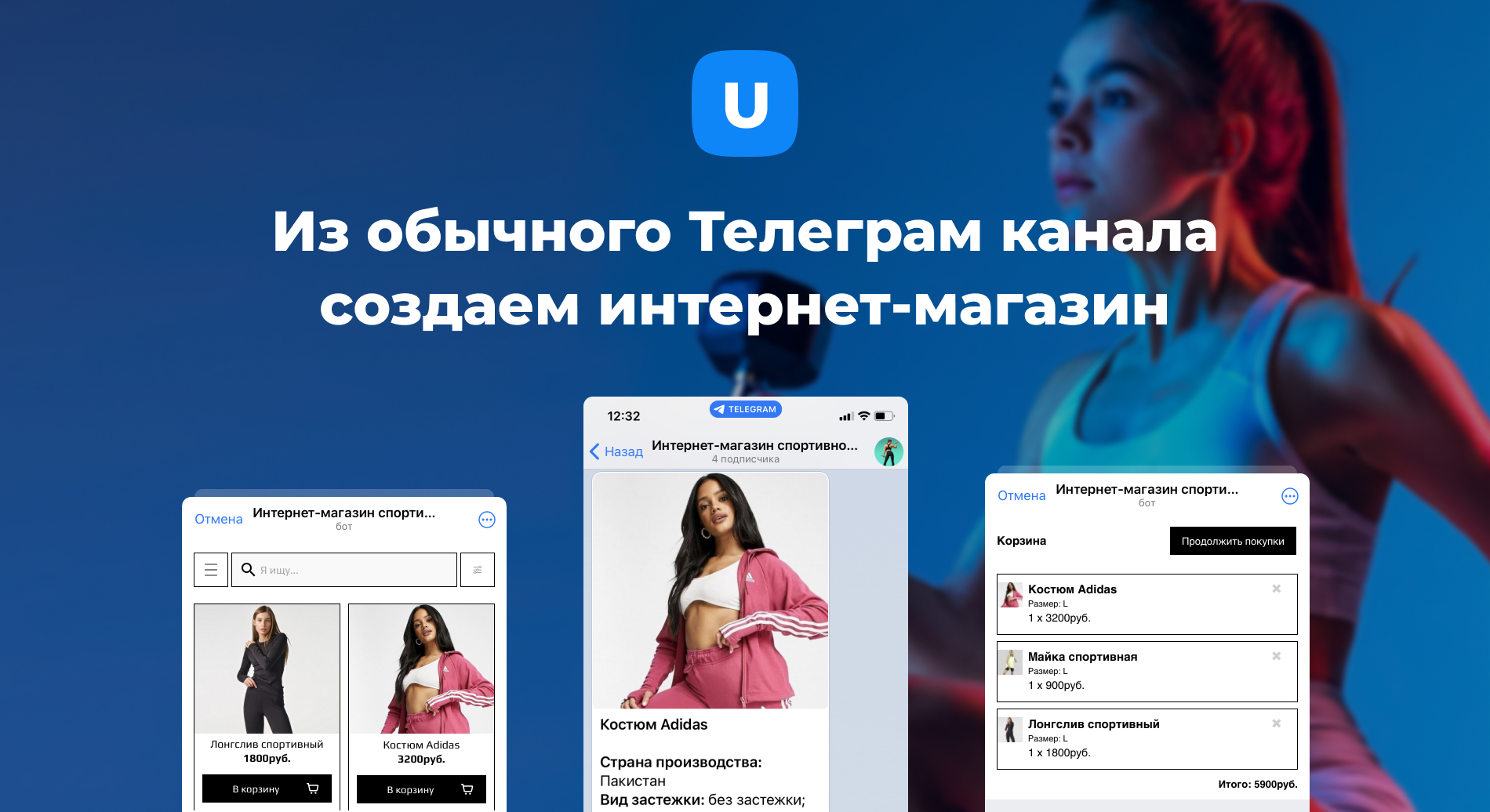
Интеграция Телеграм канала и чата с ботом
Инструкции по размещению товара в каналах, личных чатах и группах.

Продажа электронных товаров в боте
В Телеграм боте в который вы создадите возможно продавать не только физические товары, но и цифровые (файлы, коды, курсы и пр.)

Рассылка для ваших клиентов бота
Запускаем рассылку среди всех пользователей которые запустили ваш бот-магазин

Уведомления о новых заказах в Телеграм
Получаем уведомления в Телеграм о заказах с интернет-магазина

Перенос бота клиенту или передача прав
Как полностью сменить владельца у бота или сделать частичную передачу прав на управление бота

Конструктор верхней части бота
Генератор HTML-кода для облегченного управление верхней частью сайта
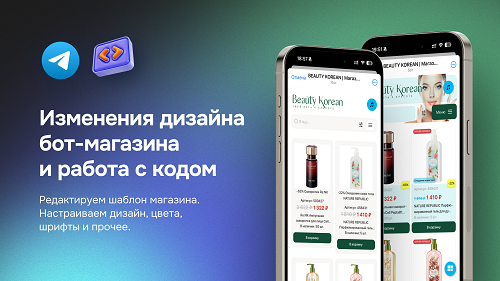
Дизайн вашего каталога в Телеграм
Как правильно редактировать и красиво оформить каталог вашего бота. Правильная работа с кодом (CSS, JS, HTML)
Let our professionals create a full-fledged online store and Telegram bot from $190
Our experts create custom sites, online stores, portals, and landing pages. Help, consultations, and SEP promotion are also available.
Order a turnkey Telegram bot